Here’s why Apple should worry. The new Galaxy S26 Ultra
Published by RawNews1st
That is a moment when the new Samsung Galaxy S26 Ultra‘s Privacy Display, announced Wednesday during the company’s Galaxy Unpacked 2026 event, can quietly step in.
Unlike traditional screen protectors that permanently darken your display, the new feature is built directly into the $1,300 Galaxy S26 Ultra’s panel. It’s not a film you stick on top; it’s a part of the hardware itself, working seamlessly with the software.
During the Unpacked event, Samsung brought out Miles Franklin from MilesAboveTech to demo the feature. To Miles, looking straight at the screen, everything remained crisp, bright and color-accurate. To anyone trying to peek from the side, like those of us watching the demo, the content fades into shadow. From this perspective, the screen might as well be off.
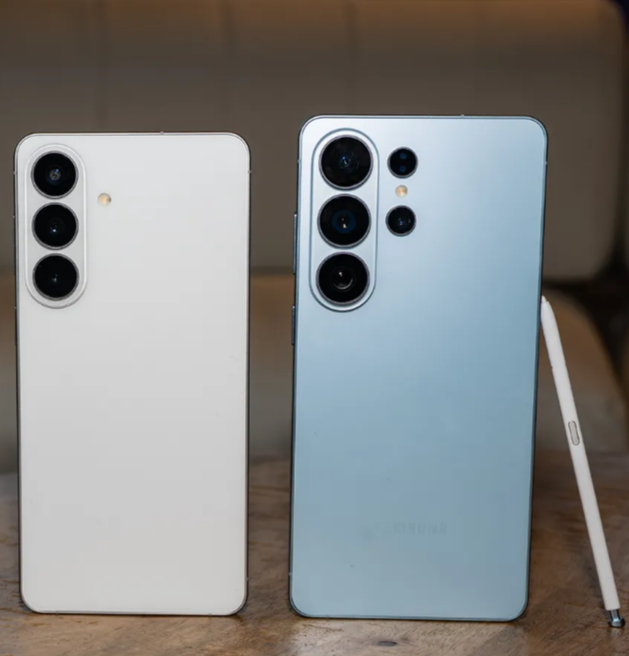
The headline hardware change is reserved for the top-tier Galaxy S26 Ultra: the Privacy Display. It prevents stray eyes from peeping over your shoulder at sensitive information on your screen—no need to apply a third-party privacy screen protector. The Ultra otherwise doesn’t look as visually distinct next to the Galaxy S26+ and Galaxy S26; unlike the previous flagships, they now all share the same look.
The Galaxy S26 Ultra has something you’ve never seen on a smartphone: a built-in privacy screen. This is a hardware-driven feature; there are two types of pixels on the OLED panel, one that shoots light directly to your eyes, and another next to it that is wider, allowing the light to reach the sides. That allows you to view the screen from all angles. When the Privacy Display is enabled, the latter pixels are turned off, severely limiting what people around you can see. It’s not just blocking the left and right sides of the smartphone like most two-way privacy screen protectors, but also the top and bottom.
What makes it more powerful than your usual privacy screen protector is that the Privacy Display can be customized via the software. You can toggle it on for the entire screen with a simple tap on the Quick Settings tile, or you can enable it for all incoming notifications, on a per-app basis, or for any app that requires a pin or passcode, like banking apps. Samsung says it’ll even work with its Routines, so you can automatically turn it on via geolocation, like when you leave the office.